Saarthi by Vision-Aid | Live working demo
Your guide to accessible meetings
Try real AI answers here. For the best experience, download the free Windows app and run Saarthi locally on your laptop.
A live demo, with limits
This page uses real NVIDIA Nemotron responses on Nebius and Sarvam speech transcription. It is a limited browser demonstration, not the full Windows application. Capture stops after three minutes, and this demo does not save meetings or provide the desktop app's longer-meeting retrieval. No API keys are needed for this shared demo.
For the best experience, use Saarthi for Windows. It offers native meeting capture, global keyboard shortcuts, screen-reader support, saved meetings and questions after the recording.
Download the free Windows app Follow the Windows setup guide
Built from lived experience
Saarthi was built by visually impaired developers in Vision-Aid's Ability Bazaar team who have experienced the challenges of an inaccessible workplace firsthand. They created it as a practical solution for themselves and are sharing it freely through Ability Bazaar to help many others participate and succeed at work.
Try the company-presentation sample, or share a meeting screen with participants' consent. Live questions use the latest 30 seconds. After stopping, ask about this browser session (up to three minutes). The Windows app supports longer, saved meetings and retrieval.
Your choice and privacy: Screen images and questions go to Nebius; meeting audio goes to Sarvam. Use non-confidential content for testing. Meeting content stays in this tab and temporarily in server memory, not saved by this web app. Reloading clears the browser session. Provider processing follows their terms. A shared demonstration allowance limits availability.
Download the full Windows app (requires your own provider keys) · Watch the video
1. Choose your meeting context
For meeting sound, choose a browser tab and enable “Share tab audio.” Audio support varies by browser and selected surface. Keep Saarthi in a separate tab from the meeting.
Simulated company presentation: before and after
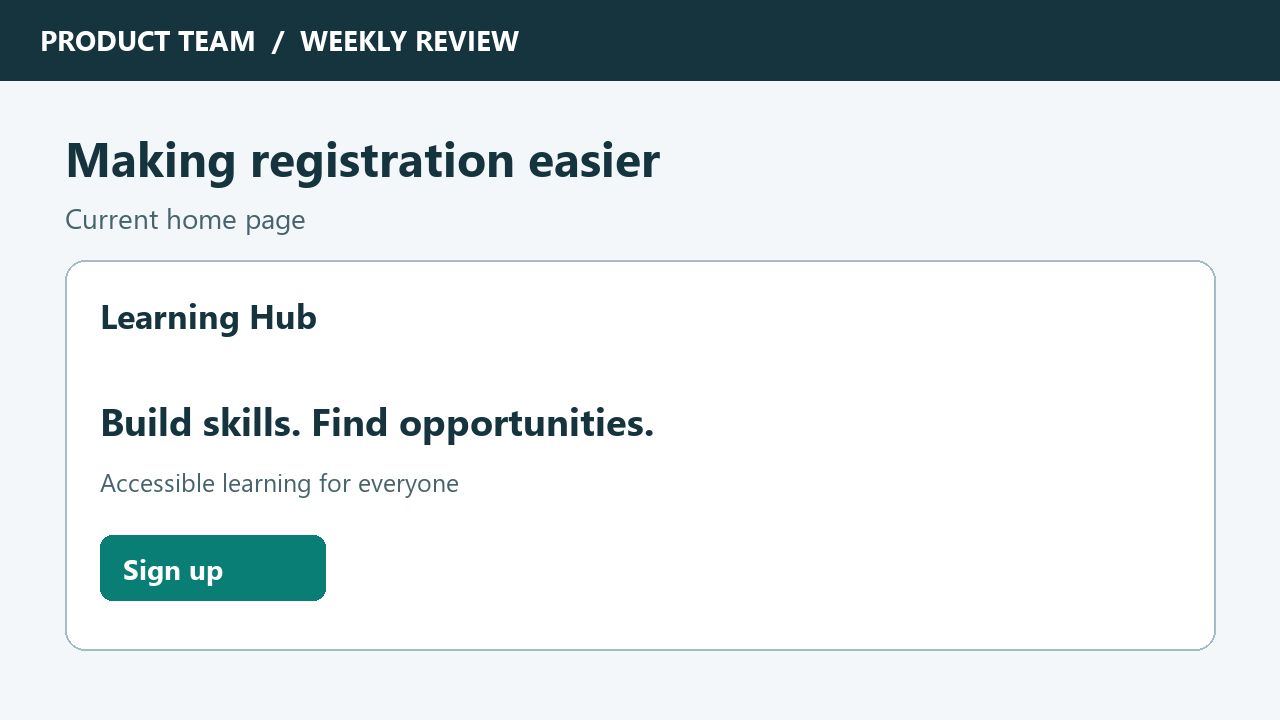
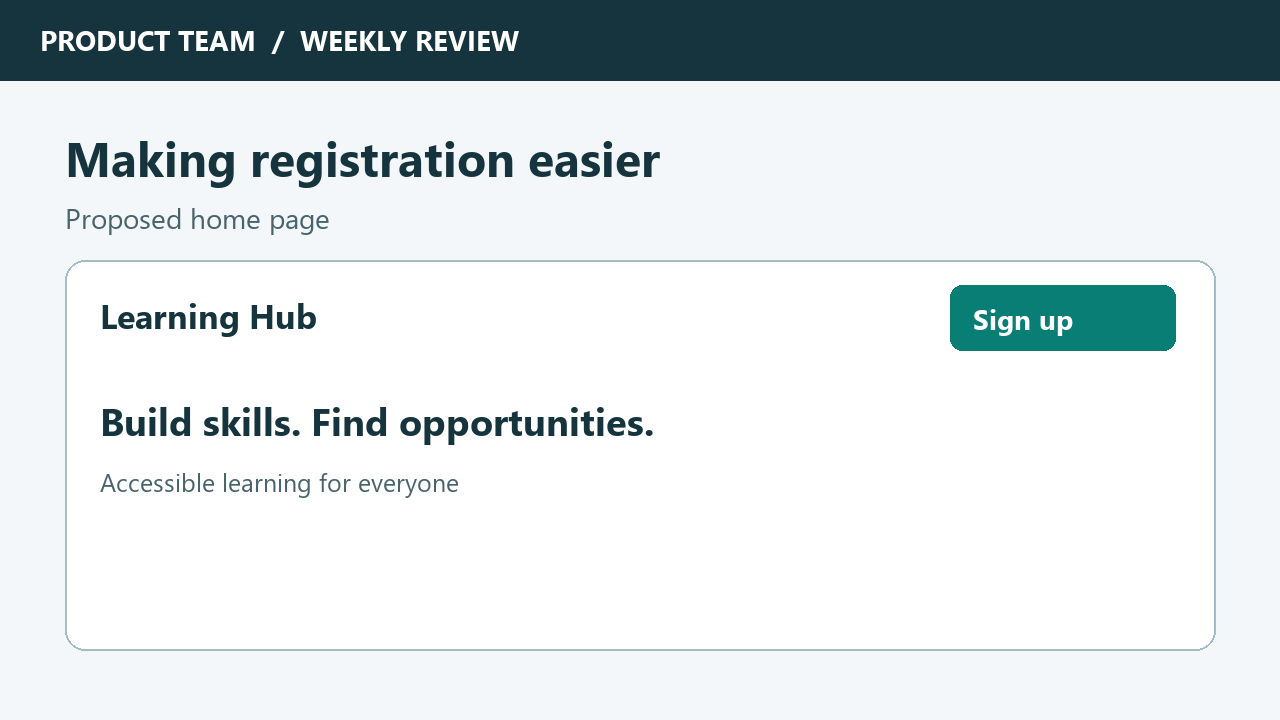
The presenter says, “We are moving it from here to here so new visitors can find registration more easily. Please check the keyboard focus order before release.”
Or add a screen image and a short audio clip
Choose the sample or share a screen to begin.
2. Ask Saarthi
Saarthi's answer
Your answer will appear here.
Get the full Windows experience: download and setup
You need a Windows 10 or 11 laptop or desktop, an internet connection, and your own Nebius Token Factory and Sarvam AI accounts. Saarthi is free and open source. The external AI providers may charge for usage.
- Download and open Saarthi. Get Saarthi.exe from the official release and save it in a folder you can find again. Open it and allow a few seconds for startup. The single-file download includes its dependencies; no separate installer or Python installation is required.
- Create a Nebius key for answers and meeting search. Sign in or create an account at Nebius Token Factory. Open API keys, choose Create API key, give it a name such as Saarthi, and copy the displayed key. Ensure your account has the model access and credits it needs. See the official Nebius key instructions.
- Create a Sarvam key for meeting transcription. Sign in or create an account at the Sarvam AI dashboard, open API Keys and create a key. Copy it when it is displayed. See Sarvam's official key instructions.
- Enter both keys in the Windows app. Saarthi opens its Settings window on first use. You can reopen Settings with Alt+G. Under Screen answers (NVIDIA Nemotron), paste the Nebius key into API key. Under Speech to text (meeting audio), paste the Sarvam key into Speech API key. The app already selects its providers and models. Keep your keys private; never post them in a public chat, video, repository or this demo page.
- Test and save. Choose Test connection. Check that Answer model, Speech to text model and Meeting search model report that they work. Then choose Save. If a check fails, verify the key, account credits and model access in the relevant provider's dashboard. Tab and Shift+Tab move between the app's labelled controls.
- Try a short meeting with consent. Open your meeting or presentation. Press Ctrl+Alt+M to start capture, then Ctrl+Alt+Space to ask about the screen and recent discussion. Type a specific question in the main window with Alt+Q. Press Ctrl+Alt+R to repeat an answer, Ctrl+Alt+X to stop speech, and Ctrl+Alt+M again to stop capture. Afterward, ask about the saved meeting; choose Past meeting to ask about for an earlier session.
Full installation and troubleshooting guide · Keyboard shortcuts · Source code, requirements and user guide